
Touch Not Working After Screen Replacement: Why It Happens and How to Fix It
You've just replaced a customer's screen, reassembled the phone, powered it on — and touch not working after screen replacement. The display lights up, everything looks normal, but tapping the screen does nothing. Or worse: the screen registers phantom taps, swipes on its own, or responds to touch in some areas but not others.
This is one of the most frustrating callbacks in a repair shop. The customer just paid for a fix, and now the phone seems more broken than before. The good news: in about 80% of cases, the cause is something you can fix in under 10 minutes. The bad news: the remaining 20% usually points to a defective replacement screen — and that's where your supplier relationship matters.
This guide covers every cause of touch failure after screen replacement, from the 30-second fixes to the quality issues that only better screen sourcing can prevent.
Sourcing Replacement Screens in Bulk?
Incell / Hard OLED / Soft OLED grades — wholesale pricing, grade comparison on request.
Get Wholesale QuoteThe 5 Most Common Causes of Touch Failure After Screen Replacement
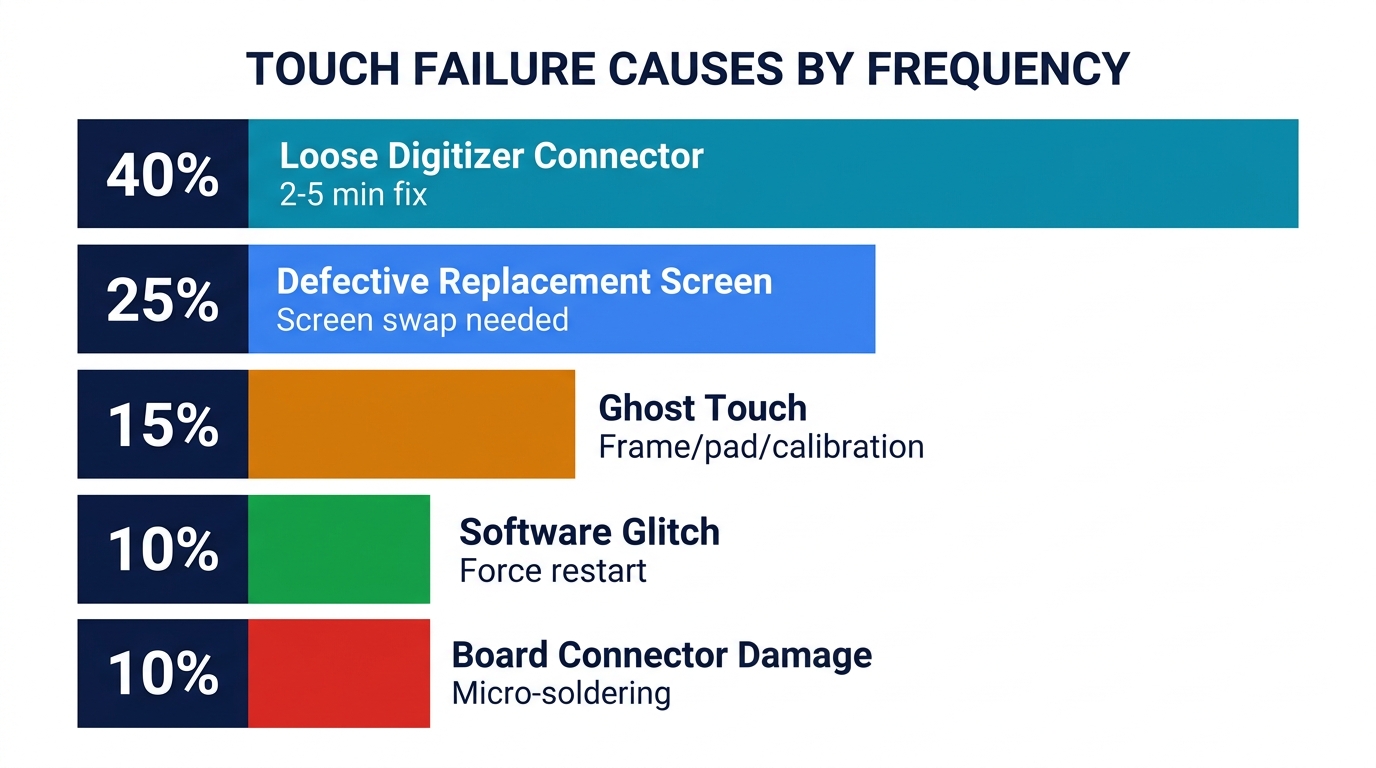
Touch issues after a screen replacement fall into a predictable pattern. Here are the causes in order of frequency, based on what repair shops encounter most often.
1. Loose or Improperly Seated Digitizer Connector
Frequency: ~40% of post-replacement touch failures Fix time: 2–5 minutes
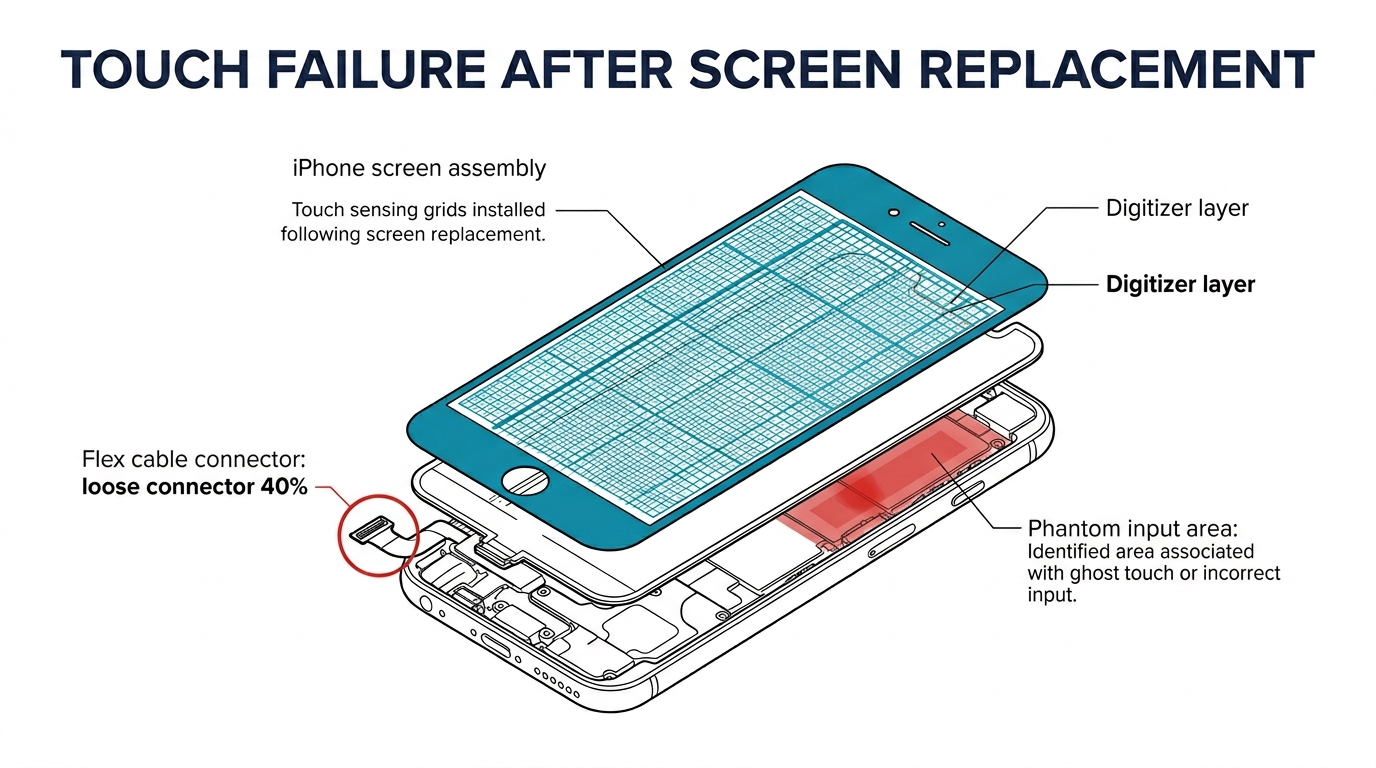
This is the single most common cause. The digitizer flex cable connector isn't fully seated on the logic board, or it popped loose during reassembly. On most iPhones, the display assembly connects via 2–3 flex cables — the LCD/OLED data cable, the digitizer cable, and sometimes a separate backlight or sensor cable. If the digitizer connector is even slightly off-centre or not clicked down fully, touch fails completely.
How to fix: Power off the phone. Disconnect the battery first (critical — reconnecting display cables with the battery connected can short the backlight circuit). Carefully disconnect and reseat all display flex cables. Make sure each connector clicks down firmly. Reconnect the battery, power on, and test touch before fully reassembling.
Prevention tip: When connecting flex cables, always start from the cable farthest from the battery connector and work inward. Use a plastic spudger, not a metal tool, to press connectors down. Listen for the click.
2. Defective Replacement Screen (Digitizer Fault)
Frequency: ~25% of post-replacement touch failures Fix time: Screen swap required (15–30 minutes)
If the connector is properly seated and touch still doesn't work, the replacement screen's digitizer layer may be defective. This is a manufacturing defect in the screen itself — the touch-sensing layer is either non-functional, poorly calibrated, or has dead zones.
This cause is directly tied to screen quality. Cheap Incell LCD screens from unreliable suppliers have significantly higher digitizer defect rates than Hard OLED or Soft OLED from reputable sources. The digitizer on a budget screen might pass a quick power-on test but fail under normal use conditions — registering inconsistently, missing edge touches, or dying completely after a few hours.
How to fix: Test with a known-good screen or the customer's original screen (if the original digitizer still functions). If the known-good screen works normally, the replacement is defective. Replace it and file a warranty claim with your supplier.
How to prevent: This is where screen sourcing makes the difference. We'll cover this in detail below.
3. Ghost Touch (Phantom Input)
Frequency: ~15% of post-replacement touch failures Fix time: Varies (5 minutes to screen swap)
Ghost touch is when the screen registers touches that nobody is making. The phone opens apps on its own, types random characters, or scrolls without input. After a screen replacement, ghost touch usually has one of three causes:
-
Screen not sitting flat in the frame. If the phone's frame is slightly bent from the drop that cracked the original screen, the replacement doesn't seat evenly. Uneven pressure on the digitizer layer causes false touch signals. Check frame alignment with a straight edge before installing the new screen.
-
Missing or displaced foam pads. Many iPhone models use small foam pads on the back of the display connectors to maintain pressure and keep them seated. If these pads weren't transferred from the original screen or are misaligned, the connector shifts during use, causing intermittent ghost touch.
-
Defective digitizer with calibration issues. Low-grade screens sometimes have digitizers that are poorly calibrated from the factory. They register touches at incorrect coordinates or generate false input signals. This requires a screen swap — no amount of reseating will fix a calibration defect.
For a deeper analysis of ghost touch causes related to screen quality, see our iPhone ghost touch and screen quality guide.
4. Software Glitch After Hardware Change
Frequency: ~10% of post-replacement touch failures Fix time: 1–3 minutes
iOS and Android both sometimes need a restart to properly initialise a new digitizer. The system was calibrated to the old screen's touch controller, and the new screen uses a slightly different controller IC. A force restart re-initialises the touch subsystem and often resolves the issue immediately.
How to fix:
- iPhone (8 and newer): Press and quickly release Volume Up, press and quickly release Volume Down, then press and hold the Side button until the Apple logo appears.
- Android: Hold Power + Volume Down for 15–30 seconds until the device restarts.
If a force restart doesn't help, try a settings reset (Settings > General > Transfer or Reset > Reset All Settings on iPhone). This doesn't erase data but resets touch calibration, display settings, and other system preferences.
5. Damaged Logic Board Connector or Traces
Frequency: ~10% of post-replacement touch failures Fix time: Board-level repair required
If the FPC connector socket on the logic board is damaged — bent pins, lifted pads, or torn traces — no screen will provide working touch. This can happen from:
- Over-aggressive connector removal during the original screen teardown, especially with metal tools
- Previous water damage that corroded the connector pins
- Repeated screen swaps that wore out the connector
How to identify: Try 2–3 different screens. If all show the same touch failure, the problem is on the board side. Inspect the connector under a microscope — look for bent or missing pins, greenish corrosion, or pads that have separated from the PCB.
How to fix: This requires micro-soldering skills. The FPC connector can be reflowed or replaced, but it's delicate work. If your shop doesn't do board-level repair, refer out and charge a diagnostic fee.
The Screen Quality Connection: Why Cheap Screens Cause More Touch Problems
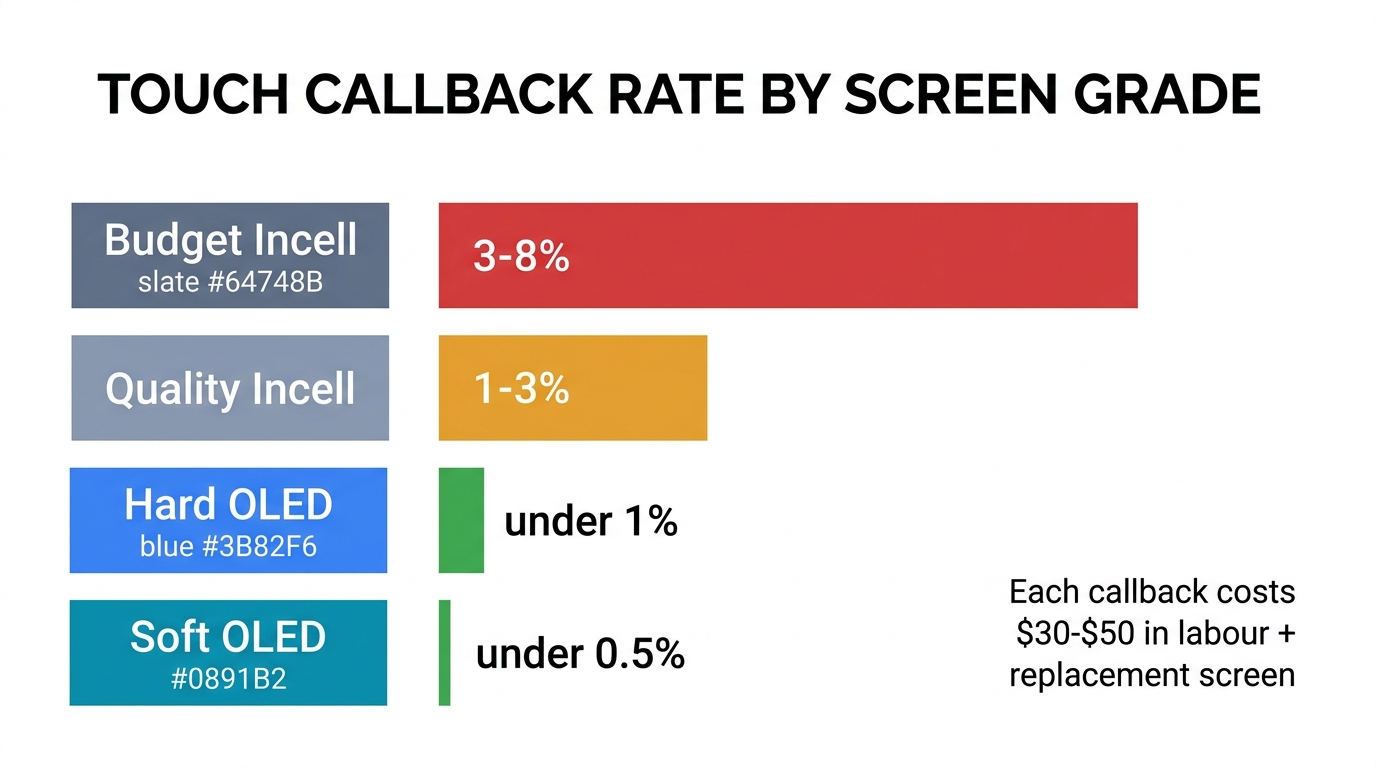
Here's what most troubleshooting guides won't tell you: the single biggest variable in post-replacement touch reliability is the quality of the replacement screen itself. A repair shop that uses high-grade screens from a reliable supplier sees far fewer touch callbacks than one that buys the cheapest option available.
The reason is in the digitizer manufacturing. The touch-sensing layer in a phone screen is a grid of transparent capacitive sensors laminated onto or into the display panel. The precision of this grid — sensor spacing, conductor thickness, calibration accuracy — determines how reliably the screen registers touch input.
How Screen Grades Affect Touch Reliability
| Grade | Digitizer Quality | Typical Touch Issues | Callback Risk |
|---|---|---|---|
| Incell LCD (budget) | Variable — depends heavily on supplier | Dead zones, missed edge touches, ghost touch, inconsistent multi-touch | Higher (3–8% callback rate) |
| Incell LCD (quality supplier) | Good — tested digitizer layer | Occasional edge sensitivity variance | Moderate (1–3% callback rate) |
| Hard OLED | Good to excellent | Rare issues, mostly connector-related | Low (under 1%) |
| Soft OLED | Excellent — closest to OEM | Very rare, almost always installer error | Very low (under 0.5%) |
See the full four-grade comparison with live wholesale prices: iPhone Screen Grade Guide
The numbers tell the story: a shop using budget Incell screens at $15–$20 each might save $25–$40 per screen compared to Hard OLED, but if 5% of those screens come back with touch issues, each callback costs $30–$50 in labour plus the replacement screen. At 40 screen replacements per month, that's 2 callbacks costing $60–$100 each — wiping out $120–$200 of the savings from buying cheap.
What to Look For in a Screen Supplier (Touch Quality Specifically)
When evaluating suppliers for screen quality, touch reliability should be a specific criterion:
- Does the supplier test digitizer function before shipping? Ask about their QC process. A good supplier tests touch responsiveness across the entire screen surface, not just a quick power-on check.
- What's their defect/return rate on touch issues? Suppliers who track this metric are usually the ones working to minimise it. If they can't answer, that's a red flag.
- Do they separate quality tiers clearly? A supplier selling "OLED screens" without specifying Incell/Hard OLED/Soft OLED is obscuring quality differences that directly affect touch reliability.
For more on evaluating supplier quality across all dimensions, see our how to choose a phone parts supplier guide. For the technical differences between screen grades, see our Soft OLED vs Hard OLED vs Incell comparison.
Tired of touch-related callbacks? We test every screen batch for digitizer function across the full touch surface before shipping. Our Incell screens average under 1.5% touch-related return rate, and our Hard OLED and Soft OLED are under 0.5%. Request grade samples and test them yourself before committing to volume.
Diagnostic Flowchart: Touch Not Working After Screen Replacement
When a phone comes back with touch issues after your screen replacement, follow this sequence:
| Step | Action | If Yes | If No |
|---|---|---|---|
| 1 | Force restart | Touch works → software glitch, done | Go to Step 2 |
| 2 | Reseat all display connectors (battery disconnected first) | Touch works → loose connector, done | Go to Step 3 |
| 3 | Check for frame bend or missing foam pads | Fix alignment/pads → test again | Go to Step 4 |
| 4 | Test with known-good screen | Known-good works → defective replacement screen | Go to Step 5 |
| 5 | Known-good screen also fails | — | Board-level fault → inspect connector under microscope |
Key rule: Always disconnect the battery before disconnecting or reconnecting any display cables. Reconnecting a digitizer cable with the battery live can damage the touch controller IC on the logic board — turning a simple reseat into a board-level repair.
How to Reduce Touch Callbacks in Your Repair Shop
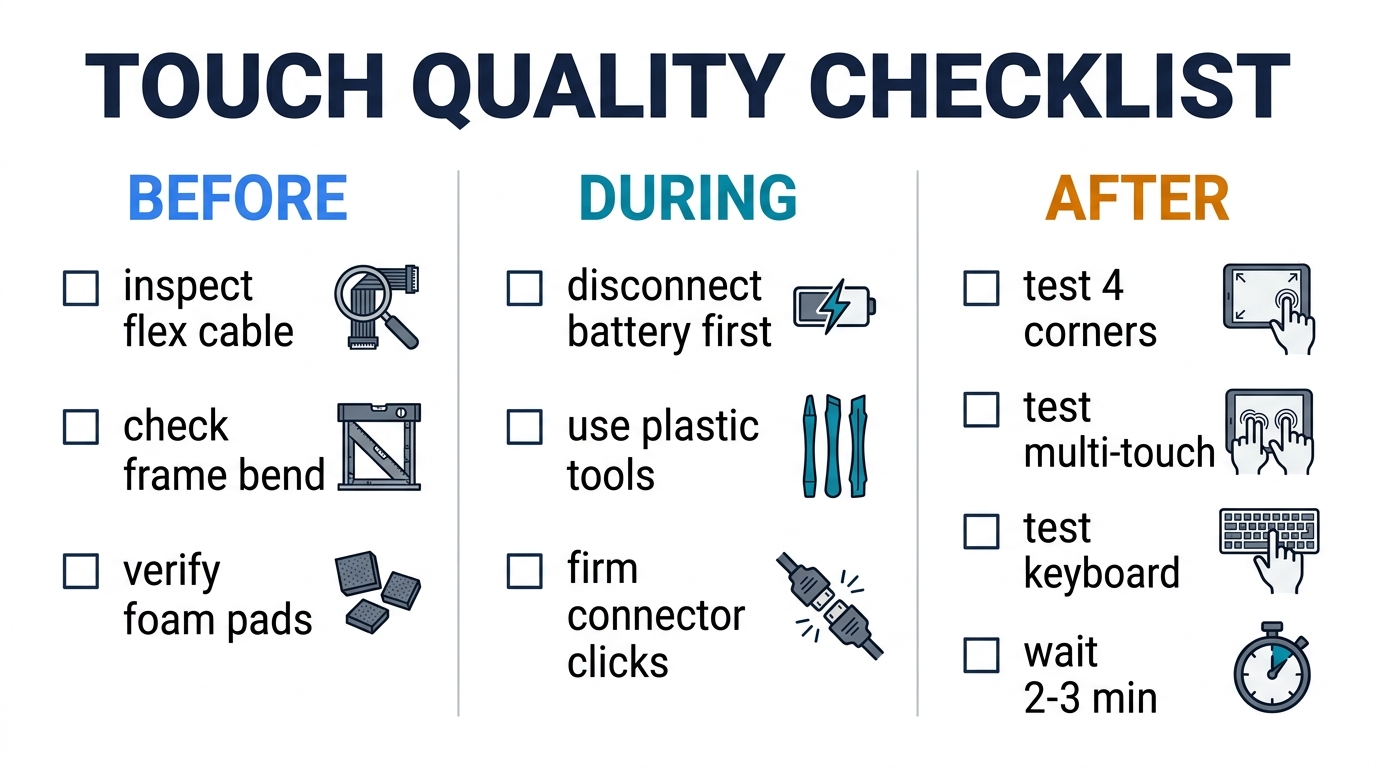
Touch-related callbacks are one of the most avoidable costs in a repair business. Here's a practical checklist that experienced shops follow:
Before installation:
- Inspect the new screen's flex cable for kinks, tears, or bent connector pins
- Check the phone's frame for bends that could prevent the screen from sitting flat
- Verify that all foam pads and shielding plates are present and correctly positioned
During installation:
- Always disconnect battery first, reconnect battery last
- Use plastic tools only for flex cable connections
- Ensure each connector clicks down firmly — if it feels loose, something is misaligned
- Route flex cables carefully, avoiding sharp bends near connector points
After installation (before returning to customer):
- Test touch in all four corners and all edges of the screen
- Test multi-touch (pinch-to-zoom in Photos or Maps)
- Test keyboard typing — this is the fastest way to catch intermittent dead zones
- Swipe through several home screens to check for ghost touch
- Test for 2–3 minutes minimum — some touch issues only appear after the screen warms up
Sourcing decisions:
- Track callback rates by supplier and screen grade
- When a specific screen model from a specific supplier generates touch complaints, stop ordering it
- Order 2–3 sample units before committing to bulk — test them in actual repairs
For a complete quality inspection workflow for incoming screen shipments, see our wholesale phone screen QC guide.
Frequently Asked Questions
Why is my iPhone touch screen not working after screen replacement?
The most common cause is a loose digitizer connector — the flex cable that carries touch data between the screen and logic board isn't fully seated. This happens during reassembly and is fixed by opening the phone, disconnecting the battery, and reseating all display connectors. If that doesn't work, the replacement screen may have a defective digitizer, which requires swapping to a different screen.
Can a screen replacement cause ghost touch?
Yes. Ghost touch after screen replacement is usually caused by one of three things: the replacement screen not sitting flat in the phone's frame (often due to a slightly bent frame), missing foam pads that normally keep connectors seated, or a defective digitizer in the replacement screen. Higher-grade screens (Hard OLED, Soft OLED) have significantly lower ghost touch rates than budget Incell screens.
How do I know if touch issues are from the screen or the logic board?
Test with a known-good screen. If a different screen works normally in the same phone, the problem is the replacement screen. If multiple screens all show the same touch failure, the problem is on the logic board — likely a damaged FPC connector or corroded traces. Board-level issues require micro-soldering repair.
Does screen quality affect touch sensitivity?
Directly. The digitizer layer in a phone screen is a precision-manufactured grid of capacitive sensors. Budget screens use thinner conductors, wider sensor spacing, and less accurate calibration — all of which reduce touch sensitivity and increase the chance of dead zones, missed inputs, and ghost touch. Soft OLED screens have the most precise digitizer calibration, followed by Hard OLED, then quality Incell, then budget Incell.
Should I test touch before giving the phone back to the customer?
Always. Test all four corners, all edges, multi-touch gestures, and keyboard typing before returning any phone. A 2–3 minute touch test catches problems that would otherwise become callbacks. Some touch issues only appear after the screen warms up, so keep the phone powered on for at least a minute before testing.
Better Screens Mean Fewer Callbacks
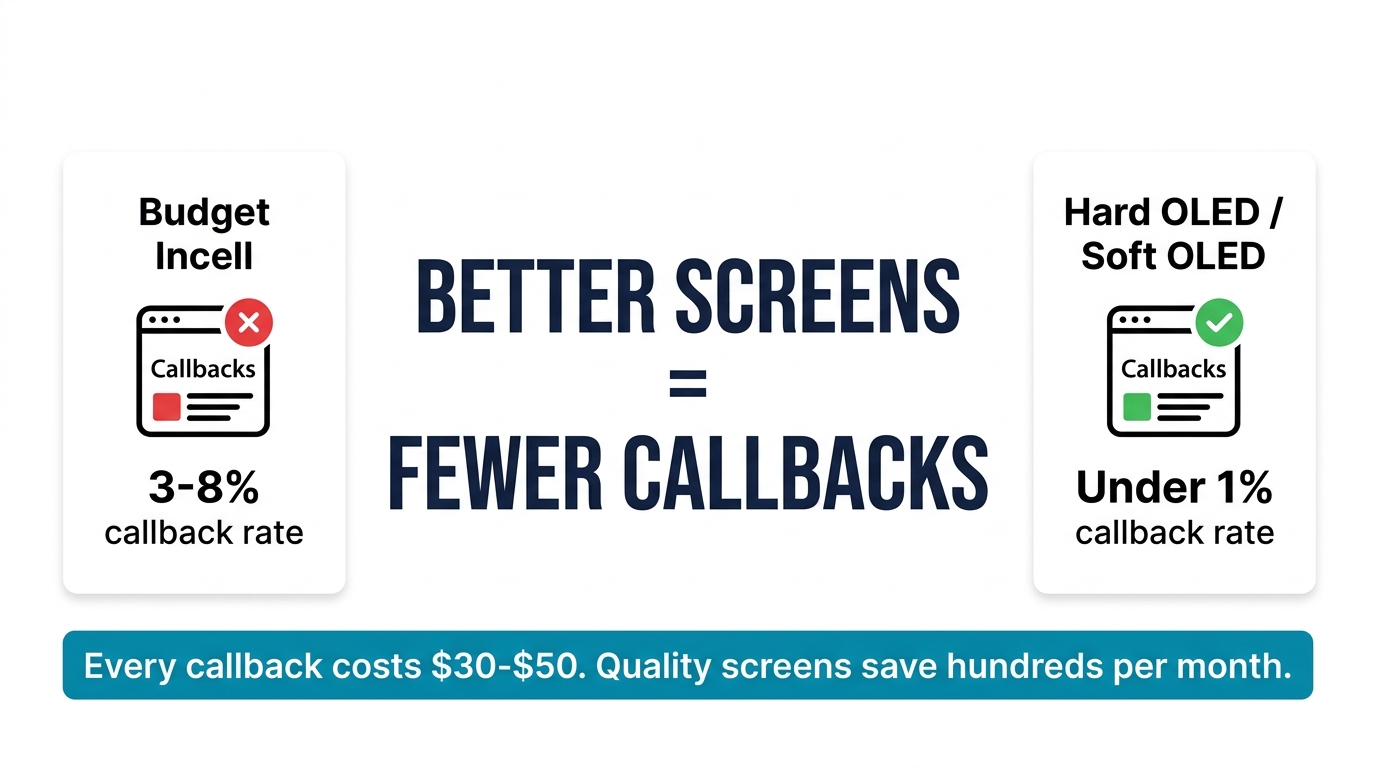
Touch failure after screen replacement is almost always either an installation issue (loose connector, missing foam pad) or a screen quality issue (defective digitizer). The installation problems are fixed by following a consistent reassembly procedure and testing before returning the phone. The quality problems are fixed by sourcing better screens.
For repair shops, the math is straightforward: every touch-related callback costs $30–$50 in labour plus a replacement screen. Investing in higher-grade screens with tested digitizers reduces callbacks from 3–8% down to under 1% — a difference that adds up to hundreds of dollars per month in a busy shop.
Want to reduce your touch-related callback rate? We supply digitizer-tested Incell, Hard OLED, and Soft OLED screens with documented return rates. Request samples and wholesale pricing to test quality before ordering in volume.